Zsh Startup Files: .zprofile vs .zshrc on macOS and Linux

If your terminal feels slow, or an environment variable appears in one terminal but not another, the cause is often Zsh’s startup mode. The two files most people reach for are ~/.zprofile and ~/.zshrc, but neither filename alone tells you whether a line belongs there. This article shows which startup files each kind of Zsh reads, what belongs in each file, and the commands that tell you which kind of shell you are in.
Zsh chooses startup files from two independent properties: whether the shell is a login shell and whether it is interactive. Terminal applications on macOS and Linux can choose different combinations, so inspect the running shell instead of assuming the operating system decides for you.
An interactive shell is intended for command entry, usually from a terminal, and -i can force that mode. A login shell starts in login mode, selected by its launcher or -l; it does not mean the shell starts only when you sign into the computer (Zsh shell-state options).
Zsh evaluates two independent flags
A shell may be:
- login and interactive, as a new macOS Terminal window or
zsh -l - non-login and interactive, as a nested
zshtyped in another shell - login and non-interactive, as
zsh -lc 'command' - non-login and non-interactive, as
zsh -c 'command'
The diagram puts the two flags on two axes. Each cell names the programs that usually start that kind of shell and marks which of the five user files it reads.
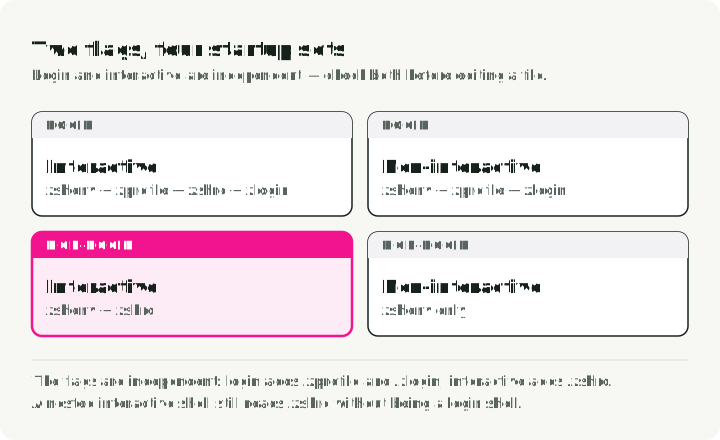
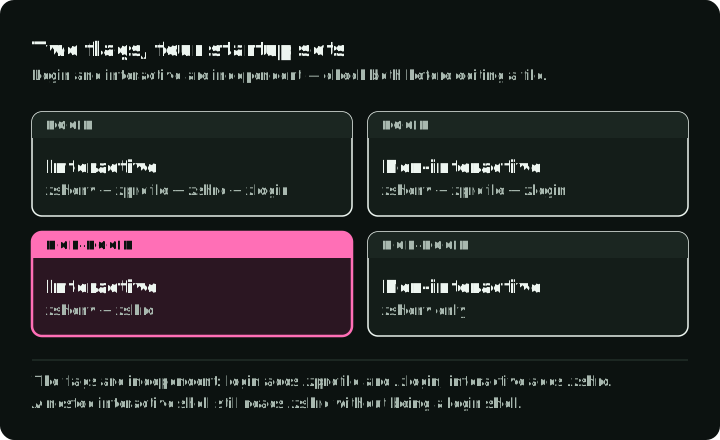
The program that starts the shell picks the mode. These are the defaults of common launchers:
| Started by | Default mode |
|---|---|
| macOS Terminal, iTerm2 | login, interactive |
| GNOME Terminal | non-login, interactive |
| VS Code terminal on macOS | login, interactive (zsh -l) |
| VS Code terminal on Linux | non-login, interactive |
ssh host | login, interactive |
ssh host 'command' | non-login, non-interactive |
new tmux window, with an empty default-command | login, interactive |
zsh typed in a shell | non-login, interactive |
zsh script.zsh | non-login, non-interactive |
Your settings can change any row. To see the real mode of the current shell, run:
print -r -- "interactive=$options[interactive] login=$options[login]"The actual startup order
With the default startup options, Zsh reads global files and then the corresponding user file. The user-file order is:
$ZDOTDIR/.zshenvfor every Zsh invocation$ZDOTDIR/.zprofileif the shell is a login shell$ZDOTDIR/.zshrcif the shell is interactive$ZDOTDIR/.zloginif the shell is a login shell$ZDOTDIR/.zlogoutwhen an interactive login shell exits normally
If ZDOTDIR is unset, Zsh uses $HOME. System-wide file locations are installation-specific; the common defaults are /etc/zshenv, /etc/zprofile, /etc/zshrc, /etc/zlogin, and /etc/zlogout (Zsh manual).
On macOS, /etc/zprofile runs path_helper, which puts the system directories at the front of PATH. Set your own PATH entries in ~/.zprofile, which runs after it, not in ~/.zshenv.
RCS is a Zsh option, on by default, that lets Zsh read startup files after /etc/zshenv. zsh -f turns it off and ordinarily skips the remaining startup files. /etc/zshenv still runs and can turn RCS back on. If a problem goes away there, investigate the startup configuration it skipped (Zsh manual).
The next diagram shows the full order for a new macOS Terminal window, global files included, and what happens to a PATH entry added in ~/.zshenv compared with ~/.zprofile.
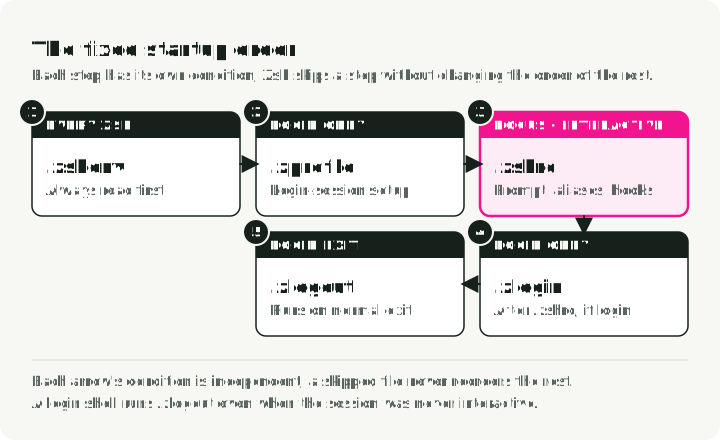
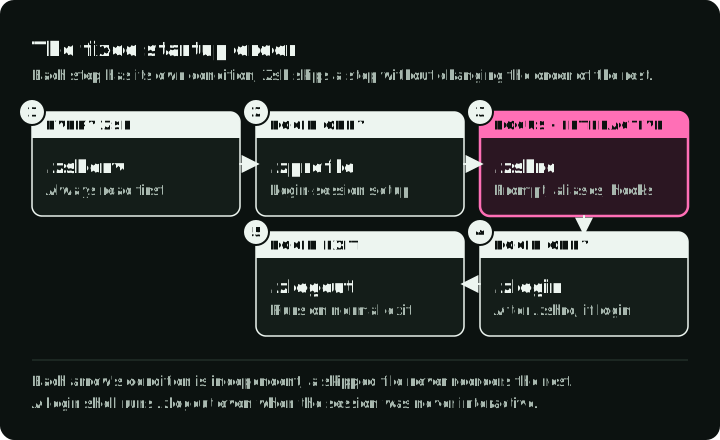
.zprofile runs once per login-shell process, not once per computer login. If every new terminal tab starts a login shell, every tab reads it.
What belongs in each file
| File | Selection rule | Good candidates | Avoid |
|---|---|---|---|
.zshenv | Every Zsh | ZDOTDIR, and rare variables every Zsh process needs | output, aliases, prompts, network calls, slow commands |
.zprofile | Login shells | login-session path setup and exported defaults | interactive hooks, completions, key bindings |
.zshrc | Interactive shells | prompt, completion, aliases, shell options, interactive tool hooks | output or mutations meant for scripts |
.zlogin | Login shells, after .zshrc | rare login actions that must run after .zshrc | configuration that must precede .zshrc |
.zlogout | Login-shell exit | small cleanup or terminal reset actions | important state that must survive crashes or exec |
Keep .zshenv short and silent
Every non-interactive zsh -c reads .zshenv (Zsh manual). An echo, package-manager call, or expensive subprocess there can corrupt command output and slow scripts. Most users need little or nothing in this file.
The common exception is ZDOTDIR. Set it in ~/.zshenv to keep the other startup files in another directory, such as ~/.config/zsh.
Use .zprofile for login-only setup
An exported variable in .zprofile is inherited by children of that login shell. It is not automatically injected into unrelated GUI applications, services, or shells whose parent never read the file.
A small profile on macOS might load Homebrew, set exported defaults, and build PATH without duplicates:
# ~/.zprofile
# The Homebrew installer recommends this line on Apple silicon.
eval "$(/opt/homebrew/bin/brew shellenv zsh)"

export EDITOR=nvim
export VISUAL=nvim

# Zsh ties the path array to the PATH scalar.
typeset -U path PATH
path=("$HOME/.local/bin" $path)
export PATH
typeset -U keeps each entry once. Without it, every source of the file or nested login shell adds the same directory again, and echo $PATH shows it several times.
Use .zshrc for interactive state
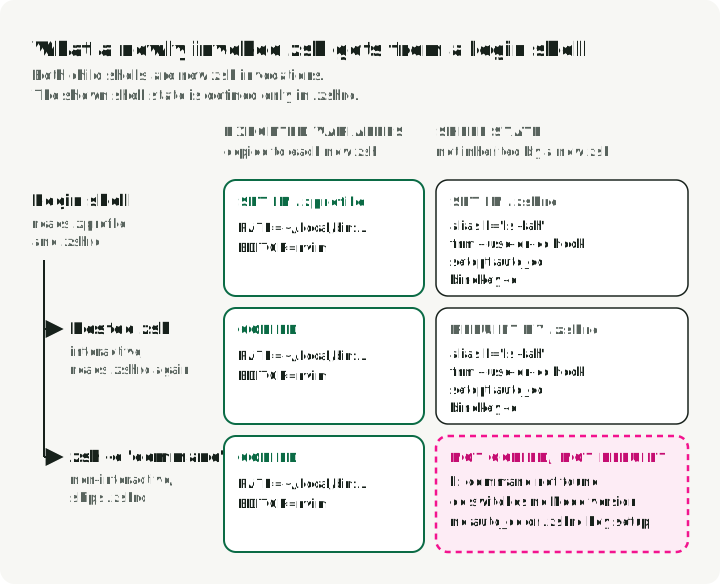
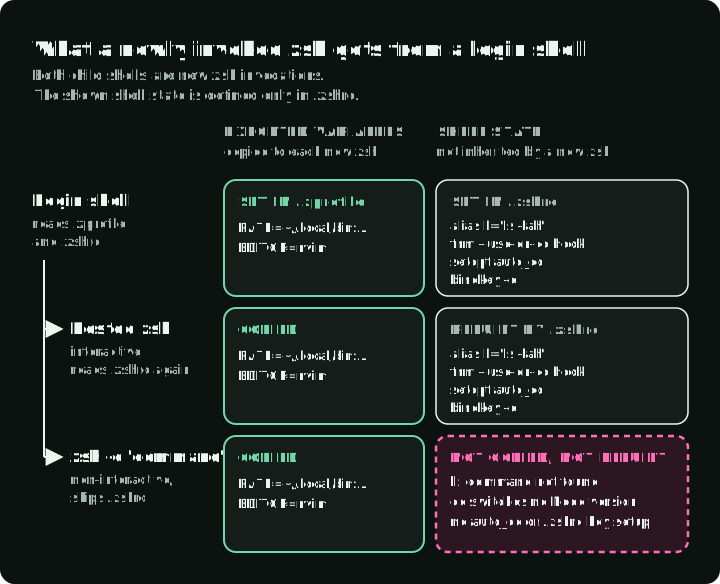
A new zsh invocation inherits exported variables. It does not inherit the parent’s aliases, functions, shell options, key bindings, or hooks. Every interactive shell must define them again, which is what .zshrc does. Zsh skips .zshrc for normal non-interactive invocations.
The diagram compares a nested zsh and a zsh -c script shell started from the same login shell. In this example, only .zshrc defines the shown shell state.
A minimal .zshrc sets options, completion, aliases, and key bindings:
# ~/.zshrc
setopt auto_cd hist_ignore_all_dups share_history

autoload -Uz compinit
compinit

alias ll='ls -lah'
bindkey -e
Where version-manager hooks go
“Put version managers in .zprofile because they are slow” is unreliable advice. A version manager may emit several kinds of code:
- a static path or root variable
- a command shim path needed by child processes
- completion definitions
- shell functions that change the current shell
- directory-change hooks for automatic version switching
The first two are exported and pass to child shells. The rest are shell state, so they must exist in every interactive shell, including a nested zsh launched from an editor. The current fnm Zsh setup therefore puts this hook in .zshrc:
eval "$(fnm env --use-on-cd --shell zsh)"The current pyenv Zsh setup likewise puts full interactive initialization in .zshrc:
export PYENV_ROOT="$HOME/.pyenv"
[[ -d $PYENV_ROOT/bin ]] && path=("$PYENV_ROOT/bin" $path)
eval "$(pyenv init - zsh)"
Pyenv documents a narrower pyenv init --path mode for shim-path setup, while full pyenv init also installs completion and shell functions. Inspect a tool’s current documentation and generated output before splitting it.
If startup is slow, measure it before moving code to a mode where it no longer works. The diagnosis section shows how.
Do not source the whole profile from .zshrc
A common cross-platform workaround is:
# Avoid this blanket coupling.
source ~/.zprofile
That turns login-only actions into per-interactive-shell actions. It can start ssh-agent again, ask for keychain access again, print output, or add PATH entries twice.
If both login and non-login interactive shells need a small set of static exports, extract an idempotent fragment and source it deliberately:
# ~/.config/zsh/environment.zsh
typeset -U path PATH
path=("$HOME/.local/bin" $path)
export PATH EDITOR=nvim VISUAL=nvim
# ~/.zprofile
source "$HOME/.config/zsh/environment.zsh"# ~/.zshrc
if [[ ! -o login ]]; then
source "$HOME/.config/zsh/environment.zsh"
fi
# Interactive-only configuration follows.A login shell reads environment.zsh through .zprofile. A non-login interactive shell reads it through .zshrc. Login actions such as ssh-agent stay in .zprofile, so this pattern keeps shared data separate from login side effects. Another option is to set your terminal to start a login shell, so every tab reads .zprofile.
Diagnose the shell that is slow or missing state
Start from the symptom: a slow shell or a missing setting.
Reproduce each mode directly:
zsh -lic 'print "login interactive"'
zsh -ic  'print "non-login interactive"'
zsh -lc  'print "login non-interactive"'
zsh -c   'print "non-login non-interactive"'
For a slow shell, use time for the total, zprof for which function takes the time, and the -x trace for which file and line runs.
Measure the mode your terminal launches:
time zsh -lic exit
time zsh -ic exit
Load the profiler at the top of .zshrc and print its report at the end. The next new shell prints a table of functions sorted by time:
# first line of ~/.zshrc
zmodload zsh/zprof
# last line of ~/.zshrc
zprof
Trace file and line execution when the source is unclear:
PS4='%N:%i> ' zsh -xlic exitRun the trace in a clean test account or inspect it before sharing: startup commands can expand tokens and other sensitive values.
For a missing executable, inspect both the mode and the path:
print -r -- "interactive=$options[interactive] login=$options[login]"
print -l -- $path
whence -va python node uv
To apply an edit, open a new tab or run exec zsh -l (login) or exec zsh (non-login). source ~/.zshrc re-runs the file in the current shell and keeps whatever the old version set.
Conclusion
The useful distinction is not “environment versus aliases.” It is login-only state versus interactive state, plus the small amount that must affect every Zsh process.
When a shell misbehaves, run the print command from the first section, then check that the setting lives in a file that mode reads.